


Google Sheets
Google LLC
I started using Google Sheets for a very ordinary household problem: several people needed to keep track of the same information without passing a notebook around or sending a new file every time something changed. A shared grocery list, a home-maintenance schedule, a school-project budget, and a simple record of monthly expenses all fit naturally into a spreadsheet. What makes this app useful is not that it turns a phone into a full desktop office, but that it lets me open, edit, and coordinate around the same online sheet from a mobile device.
Google Sheets is a free productivity app from Google LLC for creating and editing online spreadsheets. It is available for Everyone, requires Android 8.0 or later, and the current version is 1.26.091.02.90. Its scale is hard to ignore: it has passed one billion installs, with an average rating of 4.8 from around 1.7 million ratings. Those figures suggest a mature, widely used tool, but they do not automatically make it the right choice for every household or every kind of spreadsheet work.
How Google Sheets Works When Several People Share the Same Information
A practical household scenario
Imagine a family preparing for a move. One person is listing boxes and their contents, another is recording estimated costs, and someone else is checking which tasks have been completed. On a computer, that is a straightforward spreadsheet job. On a phone, the challenge is keeping the latest version available while people are away from the desk. Sheets handles that situation well because the document is online and edits can be made from the app rather than from a single locally stored file.
Related News

I find it especially useful when the information changes in small pieces throughout the day. A person can add a purchase, update a quantity, or mark a task as done without rebuilding the whole document. That makes it more suitable than a chat thread for structured information. Messages are good for discussion, but a conversation becomes difficult to search when the household needs one dependable list of prices, names, dates, or responsibilities.
A useful setup is to give each purpose its own tab inside one workbook. For example, a household budget can have separate areas for planned spending, actual spending, and notes. A shared event can use tabs for guests, food, transport, and payments. This is more reliable than placing everything in one long table, where unrelated entries become easy to overlook. I also prefer short, clear column names because phone screens leave less room for interpretation than a large monitor.
Latest News

Uber Eats Under Pressure: What Happens When Delivery Goes Wrong

How QR & Barcode Scanner Adapts to Android and iOS Innovations

Why Waze Navigation & Live Traffic Is Your Essential Travel Companion

CapCut Mastery: Unleash Hidden Features for Pro-Level Editing

How OS Updates Enhance Roblox Adventures

Teacher Simulator: Exam Time Turns Quick Classroom Judgments into a Repetitive Loop
There is a trade-off here. A spreadsheet is organized, but it still asks everyone to follow the same structure. If one person types a date in one format and another uses a different format, sorting and filtering can become confusing. The app does not remove the need for household agreement. It gives people a common workspace; it does not decide how that workspace should be maintained.
Setting boundaries before sharing
The first decision should be who needs to see the file and who genuinely needs to edit it. For a shared shopping list, broad editing may be convenient. For a household budget, I would be more careful. Giving every participant the same ability to change formulas, headings, or old entries can make the sheet harder to trust, even when nobody has bad intentions.
I recommend creating a simple working rule before inviting others: decide which columns are for new entries, which areas should not be changed, and who checks unusual edits. This is not a replacement for access management, but it prevents many accidental problems. A person who only needs to check a schedule may not need editing access, while the person responsible for updating costs may need more freedom.
Gallery
Account boundaries matter just as much as spreadsheet boundaries. I would not treat a shared device as proof that everyone should use the same account. Each person should understand which account is being used to open or edit a document, especially if the phone belongs to more than one household member. Signing into the wrong account can create confusion about which files appear and who is expected to maintain them.
For a family tablet or another shared device, I would also make a habit of checking the account before opening a sensitive workbook. A spreadsheet containing addresses, payment details, or private notes deserves more care than a list of chores. The app is practical for coordination, but the responsibility for choosing the right document and account remains with the people using it.
The most important boundary is not technical complexity; it is deciding what information belongs in a shared sheet at all. A household can use Sheets for planning without placing every private detail into one document. Keeping a general schedule separate from personal records makes the shared file easier to understand and reduces the chance of exposing information to someone who only needed the shopping list.
Coordinating edits without creating confusion
When several people edit the same workbook, clarity becomes more valuable than decoration. I like using one row per task, purchase, or item and keeping the meaning of each column consistent. A task list might include the task, responsible person, target date, and status. A shopping list might include the item, quantity, preferred brand, and whether it has been purchased. This structure makes the sheet readable even when someone opens it quickly on a small screen.
Another useful habit is separating instructions from entries. A short note at the top can explain how to add a new item, while the main table remains clean. Without that separation, people often type explanations into cells that were meant for numbers or dates. The result may still look understandable to the person who entered it, but less so to everyone else.
I also avoid using color as the only way to communicate status. Color can help the sheet scan faster, but a label such as “waiting,” “done,” or “needs checking” is more dependable. Someone viewing the file in a different context should not have to guess what a shade means. This is a small design choice, yet it makes a noticeable difference when a household uses the same file over several weeks.
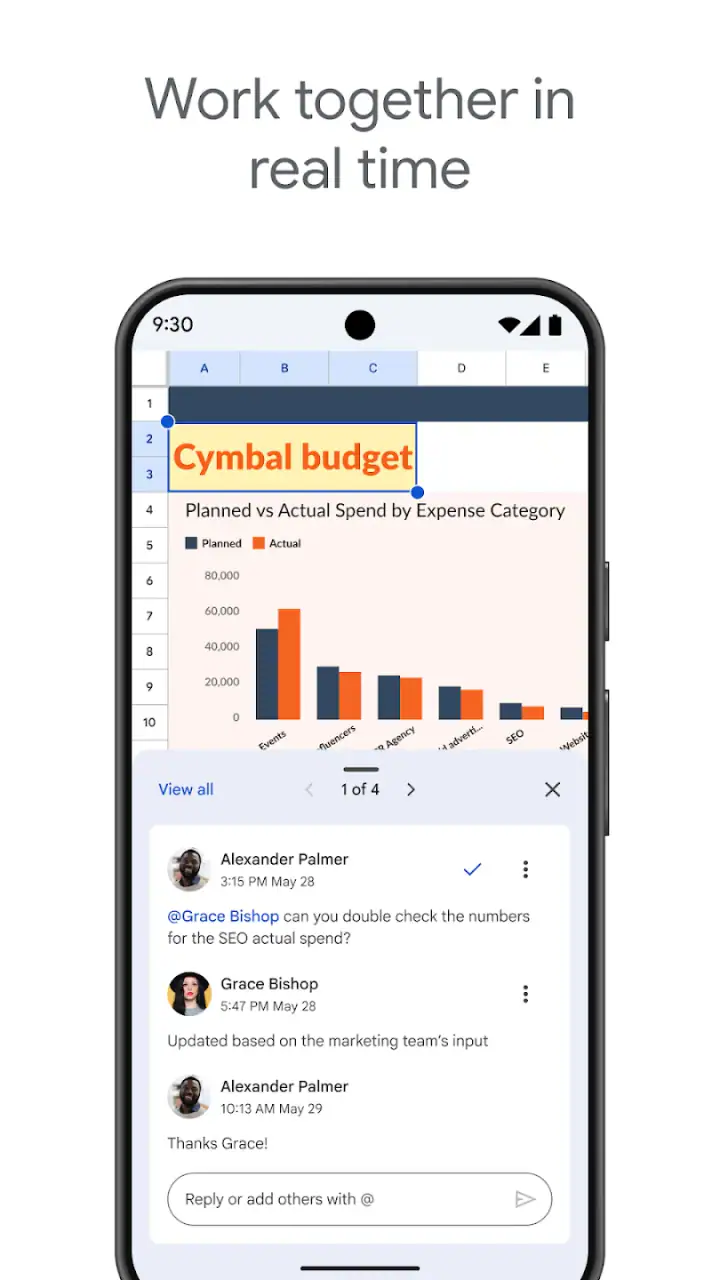
For coordination, comments and conversation outside the table can serve different purposes. The table should hold the current fact: what needs doing, how much it costs, or whether it is complete. Discussion can explain why a change was made. Mixing long explanations into the working cells makes the document difficult to scan, especially on a phone.
One of my favorite mobile workflows is to update a sheet immediately after an event instead of relying on memory. After buying supplies, I can record the amount while the receipt is still available. After a child finishes a task, the responsible adult can update the status before the next person checks the list. The benefit is not speed alone; it is reducing the gap between what happened and what the shared document says happened.
What the phone experience does well
The mobile app is strongest when I need quick access to an existing workbook or a small edit. Checking a total, adding a row, correcting a spelling mistake, or marking a task complete feels natural enough. It is also useful when a household member is away from the computer but still needs to contribute to a shared plan.
That convenience should not be confused with a complete replacement for desktop spreadsheet work. Long formulas, wide tables, careful formatting, and large-scale cleanup are more comfortable with a keyboard and a bigger screen. On a phone, selecting the correct cell can take more attention, and moving around a dense sheet can feel slow. I would use the app for participation and review, then switch to a computer for major restructuring.
This distinction helps families avoid a common mistake: building a complicated workbook on a phone simply because the app makes editing possible. If the sheet requires many linked calculations or detailed presentation, planning the structure on a larger screen is sensible. The mobile app then becomes the convenient companion for updates, checks, and short entries.
Age, trust, and shared-device habits
The Everyone content rating makes Sheets broadly suitable as a general productivity tool, but an age label does not answer every household question. A young person may be able to use a shopping list or school supply table, while a financial workbook may call for adult supervision and clearer limits. The right decision depends on the sensitivity of the information and the child’s ability to follow the agreed structure.
I would introduce a younger user with a low-risk document rather than handing over a complex household budget. A list of books to read, a simple project plan, or a packing checklist offers practice with rows, columns, and updates without exposing unnecessary personal information. It also gives the family a chance to see whether the child understands which cells to change and which areas to leave alone.
Trust is easier to maintain when everyone knows what an edit means. If a child marks a task as complete, the household should have a shared understanding of whether that means “started,” “finished,” or “ready for checking.” Ambiguous status labels create arguments that look like technical problems but are really coordination problems.
On a shared device, I would avoid leaving a sensitive workbook open when another person is about to use the phone. I would also explain that a spreadsheet is not a private diary simply because it is not visible in the app’s main screen. The safest household habit is to treat shared documents according to their contents, not according to how harmless the spreadsheet format appears.
Where it compares with familiar alternatives
Compared with a notes app, Sheets is better when information needs rows, columns, sorting, totals, or a shared structure. Notes are quicker for free-form ideas, but they become awkward when several people must update individual items. Compared with a chat group, Sheets is better as a stable reference. A chat can announce that the groceries were bought, while the spreadsheet can preserve the complete list and its current status.
Compared with a desktop spreadsheet program, the mobile version is more convenient for access and collaboration on the go, but less comfortable for precision work. If I were preparing a complex financial model, a large report, or a carefully formatted document, I would choose a computer-based workflow. Sheets on a phone is most valuable when the priority is keeping people connected to the same working information.
Compared with a dedicated family organizer, Sheets offers flexibility instead of a ready-made household system. A specialized organizer may provide a more guided experience for chores, calendars, or reminders. Sheets asks the family to build its own layout, which takes more effort but also means the workbook can match unusual needs. Someone who dislikes designing tables may prefer a purpose-built planner, while someone who wants control over categories and calculations may appreciate Sheets more.
Limitations I noticed in everyday use
The biggest weakness is the possibility of accidental complexity. A workbook can begin as a simple list and gradually collect extra tabs, formulas, colors, and exceptions. After a while, the person who created it may understand everything while everyone else hesitates to touch it. I think a household sheet should be simplified regularly: remove obsolete rows, clarify headings, and keep the main view focused on what people actually need today.
Phone editing also has a physical limitation. A narrow screen makes it harder to compare distant columns or inspect a long formula. If a user is entering many records, the process can feel repetitive and error-prone. Voice input or copying existing values may help in some situations, but I would still review entries afterward rather than assuming every mobile edit is correct.
Another limitation is social rather than technical: a shared sheet does not guarantee that people will check it. If one person continues sending changes through private messages, the workbook quickly stops being the single source of truth. Before adopting Sheets, the household should agree that important updates go into the document, not only into conversation.
Privacy also deserves a realistic view. A document shared among relatives or roommates may contain information that should not be visible to every participant. I would keep sensitive details out of broad household files and use separate documents for narrower groups. This makes coordination less convenient in the short term, but far easier to manage responsibly.
Who should use it and who should skip it
I recommend Google Sheets to households that already use Google accounts and want a flexible place for shared lists, budgets, schedules, inventories, or project planning. It is especially good for people who sometimes work from a computer and sometimes need to make a quick change from a phone. The free price also makes it easy to try without committing to a paid household-planning service.
I would be more cautious about recommending it to someone who wants a ready-to-use chore system, automatic family reminders, or a highly guided calendar experience. Sheets can be shaped into many workflows, but that flexibility means the user must design and maintain the system. It is not the best fit for a person who wants the app to dictate the process.
It is also not my first choice for a large, complicated workbook that needs extensive formatting or constant numerical analysis on a phone. In that case, I would use a desktop environment for the main work and reserve the mobile app for checking and small updates. The app works best as part of a broader workflow rather than as the only tool for every spreadsheet task.
My household verdict
Google Sheets has earned its place in my everyday toolkit because it turns scattered household information into something people can update together. Its value appears in modest situations: recording a purchase before the receipt disappears, checking who is handling a task, or keeping a moving checklist current while everyone is in different places. Those uses are less glamorous than advanced spreadsheet work, but they are where the app feels most practical.
I would install it for a shared household that wants flexibility and is willing to agree on simple rules. Start with one clear workbook, give each tab one purpose, define who can edit sensitive areas, and keep private information out of broadly shared files. Once the structure becomes confusing, simplify it instead of adding another layer of formatting.
My final view is positive, with one qualification: Sheets is a powerful shared workspace, not a substitute for household communication or judgment. It helps people coordinate, but only when they agree where the truth lives and how changes should be recorded. For that reason, I see it as an excellent free productivity app for organized families, roommates, students, and small personal projects, while users seeking a fully managed family planner may be happier with a more specialized alternative.
FAQs for Google Sheets
What is Google Sheets and what can it be used for?
Google Sheets is a cloud-based spreadsheet application that allows users to create, edit, and collaborate on spreadsheets online. It's part of Google's free web-based suite, Google Workspace. Users can perform calculations, create charts, and use it for tasks ranging from simple data entry to complex data analysis.
Is Google Sheets free to use?
Yes, Google Sheets is free to use with a Google account. It offers a wide range of functionalities at no cost, though there are premium features available through Google Workspace subscriptions. These subscriptions are aimed at businesses and offer additional storage, security, and collaboration tools.
Can Google Sheets be used offline?
Yes, Google Sheets can be used offline by enabling offline mode in Google Drive. This feature allows users to access and edit their spreadsheets without an internet connection. Changes made offline will automatically sync to the cloud once the device reconnects to the internet.
How does collaboration work in Google Sheets?
Google Sheets allows multiple users to work on a document simultaneously. Users can share spreadsheets by sending a link or inviting others via email. Real-time collaboration includes features like comment threads, change tracking, and the ability to see others' edits as they happen, enhancing team productivity.
What file formats does Google Sheets support for import and export?
Google Sheets supports a variety of file formats for import, including Excel (.xlsx), CSV, and OpenDocument Format (.ods). For export, users can save their spreadsheets in formats such as PDF, Excel, CSV, and more. This flexibility makes it easy to share data across different platforms.
Pros
- Real-time collaboration with team members.
- Seamless integration with Google Drive.
- Wide range of templates available.
- Accessible on multiple devices.
- Free to use with a Google account.
Cons
- Limited offline functionality.
- Complex formulas can be slow.
- Advanced features require extensions.
- Mobile app lacks some desktop features.
- Privacy concerns with data security.


